
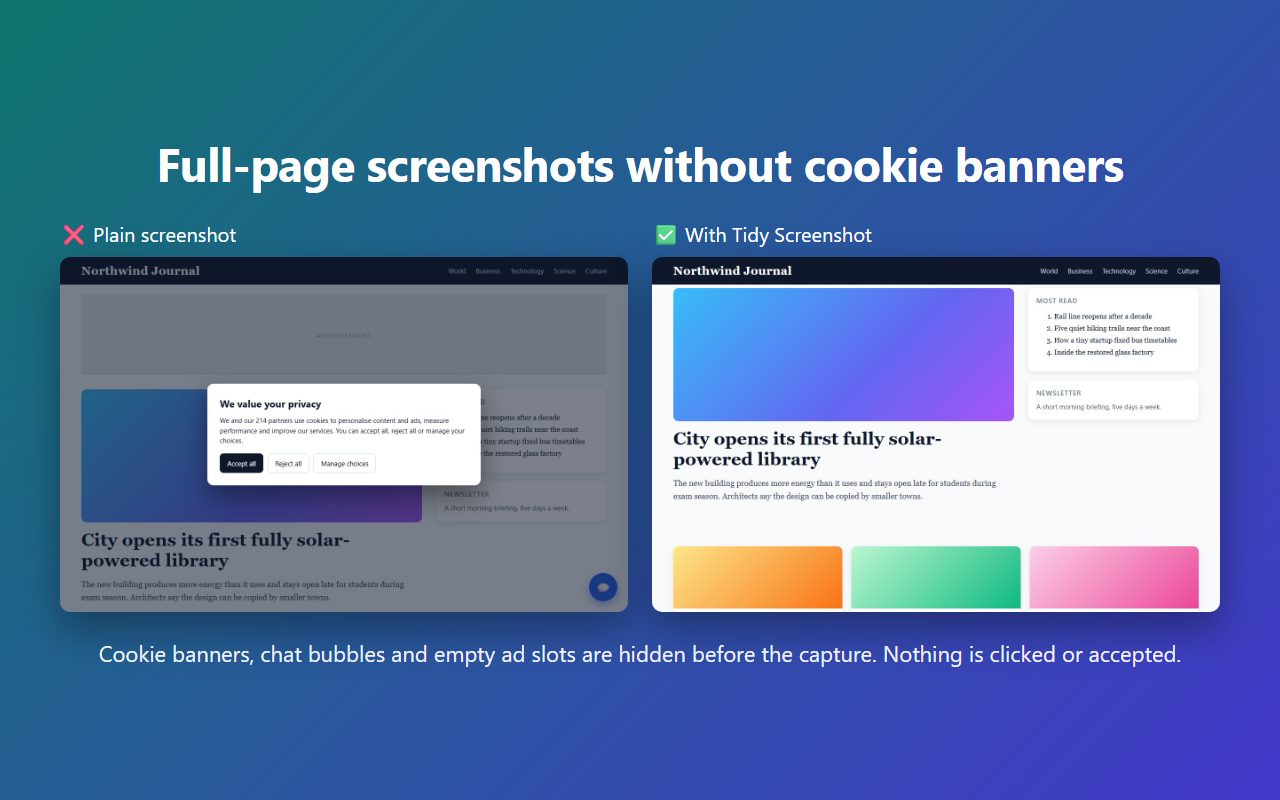
How to take a clean full-page screenshot
- Open the page you want to capture.
- Click the Tidy Screenshot button in the toolbar and choose Capture full page, or press Alt+Shift+S. For only the part you can see, press Alt+Shift+V.
- The extension scrolls the page, stitches it into one image and opens it in a new tab. Download it as PNG, JPG or a multi-page PDF, or copy it to the clipboard.
What it removes, and what it doesn't
Cookie banners
Consent popups from common consent platforms are hidden with CSS during the capture. Nothing is clicked, accepted or rejected for you.
Chat bubbles
Floating support and chat widgets disappear from the screenshot instead of covering the content.
Ad gaps
Empty ad slots that leave big blank boxes in the page are collapsed.
Repeated headers
Sticky headers are shown once at the top instead of on every screen of a long page.
Lazy-loaded images are loaded before the capture. All changes are undone right after, and each cleanup option can be turned off in the popup.
Private by design
- No account, no sign-up and no analytics.
- Screenshots are made and stored in your browser and are never uploaded anywhere.
- Minimal permissions: it can only capture the tab you choose, when you click or press the shortcut.
Details: privacy policy.
Questions
Is Tidy Screenshot free?
Yes. The extension is free to install and use.
Does it accept cookies on my behalf?
No. It only hides the banner while the screenshot is taken. Your cookie choices on the site stay exactly as they were.
Can it capture very long pages?
Yes, it scrolls and stitches the whole page. Browsers can't draw images taller than about 32,000 pixels, so extremely long pages stop there and the result page tells you.
Why can't I capture some pages?
Browser pages such as settings, new-tab pages and the extension stores are protected, so no extension can capture them.
Which formats can I save?
PNG, JPG and multi-page PDF. You can also copy the image to the clipboard and paste it into chat, email or documents.
Where do I report a problem?
Email datadocklabs@gmail.com with the page address and what you expected. See also the support page.
This page in other languages: Español · Português (Brasil) · Deutsch · Français · Italiano · Nederlands · Polski · Русский · Українська · Türkçe · 日本語 · 한국어 · 简体中文 · 繁體中文 · Bahasa Indonesia · Tiếng Việt · العربية